
WhatFlow helps online merchants automate order confirmations, abandoned cart recovery, fulfillment updates, and cancellations via WhatsApp

category:

Development

services:

WordPress, HTML

Date:

November 22, 2023

team:

Developer – Anna Lee
Designer – Tim Willson

WhatFlow simplifies order management by automating order confirmations, abandoned cart recovery, fulfillment updates, and cancellations directly via WhatsApp. It sends confirmation polls to customers and automatically updates order tags based on their responses, helping merchants efficiently track confirmed and canceled orders. Integrated seamlessly with Shopify, WhatFlow allows merchants to manage orders and customer engagement directly from their dashboard—saving time and reducing manual work.

Automatically send confirmation messages to customers via WhatsApp.
Reach out to customers who abandoned their checkouts with automated reminders.
Keep customers informed with real-time updates on shipping and delivery status.
Manage orders and track customer responses directly from your Shopify dashboard.
No complex API setup, connect in minutes using WhatsApp’s “link a device”.

WhatFlow helps online merchants automate order confirmations, abandoned cart recovery, fulfillment updates, and cancellations via WhatsApp

category:

Development

services:

WordPress, HTML

Date:

November 22, 2023

team:

Developer – Anna Lee
Designer – Tim Willson

WhatFlow simplifies order management by automating order confirmations, abandoned cart recovery, fulfillment updates, and cancellations directly via WhatsApp. It sends confirmation polls to customers and automatically updates order tags based on their responses, helping merchants efficiently track confirmed and canceled orders. Integrated seamlessly with Shopify, WhatFlow allows merchants to manage orders and customer engagement directly from their dashboard—saving time and reducing manual work.

Automatically send confirmation messages to customers via WhatsApp.
Reach out to customers who abandoned their checkouts with automated reminders.
Keep customers informed with real-time updates on shipping and delivery status.
Manage orders and track customer responses directly from your Shopify dashboard.
No complex API setup, connect in minutes using WhatsApp’s “link a device”.

WhatFlow helps online merchants automate order confirmations, abandoned cart recovery, fulfillment updates, and cancellations via WhatsApp

category:

Development

services:

WordPress, HTML

Date:

November 22, 2023

team:

Developer – Anna Lee
Designer – Tim Willson

WhatFlow simplifies order management by automating order confirmations, abandoned cart recovery, fulfillment updates, and cancellations directly via WhatsApp. It sends confirmation polls to customers and automatically updates order tags based on their responses, helping merchants efficiently track confirmed and canceled orders. Integrated seamlessly with Shopify, WhatFlow allows merchants to manage orders and customer engagement directly from their dashboard—saving time and reducing manual work.

Automatically send confirmation messages to customers via WhatsApp.
Reach out to customers who abandoned their checkouts with automated reminders.
Keep customers informed with real-time updates on shipping and delivery status.
Manage orders and track customer responses directly from your Shopify dashboard.
No complex API setup, connect in minutes using WhatsApp’s “link a device”.

Category Windows
7 Ways To Fix What­sApp Not Open­ing On PC

WhatsApp’s transition from mobile to desktop hasn’t been without any hurdles. Unlike rival services like iMessage, Telegram, or Signal, WhatsApp relies on an active internet-connected phone to function properly. Besides, the WhatsApp official app for Windows and Mac leaves a lot to desire with sluggish performance and random shutdowns. Sometimes, WhatsApp doesn’t even open on PC, forcing users to opt for the web version to start communication.

If you are among the affected ones, you can try the troubleshooting steps below and use WhatsApp without any issues on the PC.

1. COMPLETELY CLOSE WHATSAPP

WhatsApp services running in the background on your PC might interfere when you try to open WhatsApp from scratch. To avoid that, you need to close WhatsApp using the Task Manager utility on PC completely. Here’s how to do it.

Step 1: Press the Windows key and type Task Manager.

Step 2: Hit the enter key and open the Task Manager.

Step 3: Find any WhatsApp-related services running in the background. Select them and hit the End Task button at the bottom.
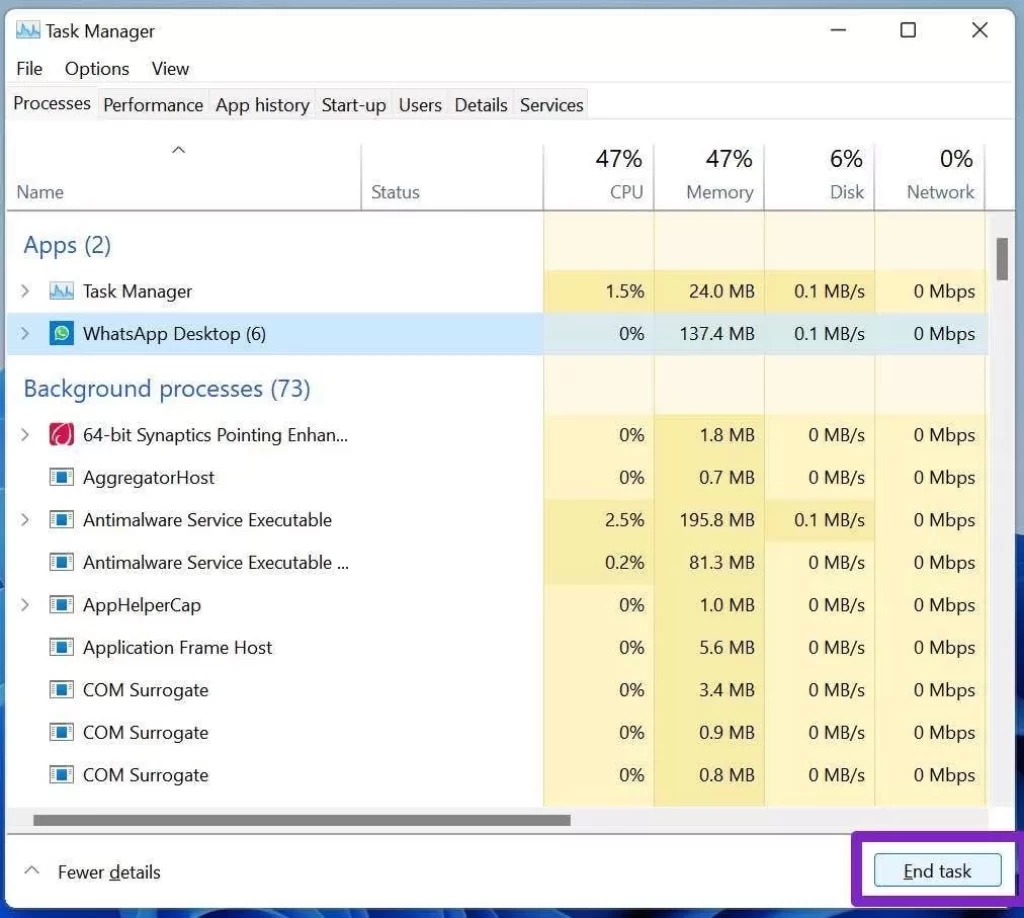
End Whatsapp Task
End Whatsapp Task

Try opening WhatsApp again on your PC.

2. USE THE SAME WI-FI NETWORK FOR THE CONNECTED PHONE AND WHATSAPP DESKTOP

This is an irritating limitation that WhatsApp is trying to fix with the recent Multi-device feature in beta.

As for now, you need your phone and WhatsApp desktop app on the same Wi-Fi network to work flawlessly.

3. USE INTERNET TROUBLESHOOTER

If you are having trouble with the internet connection on your PC, you will only notice the loading indicator when trying to use the WhatsApp desktop app.

Windows has a capable built-in internet troubleshooter that fixes network-related issues on your PC. Here’s how to use it.

Step 1: Open the Settings app on your Windows PC (Use Windows + I keys).
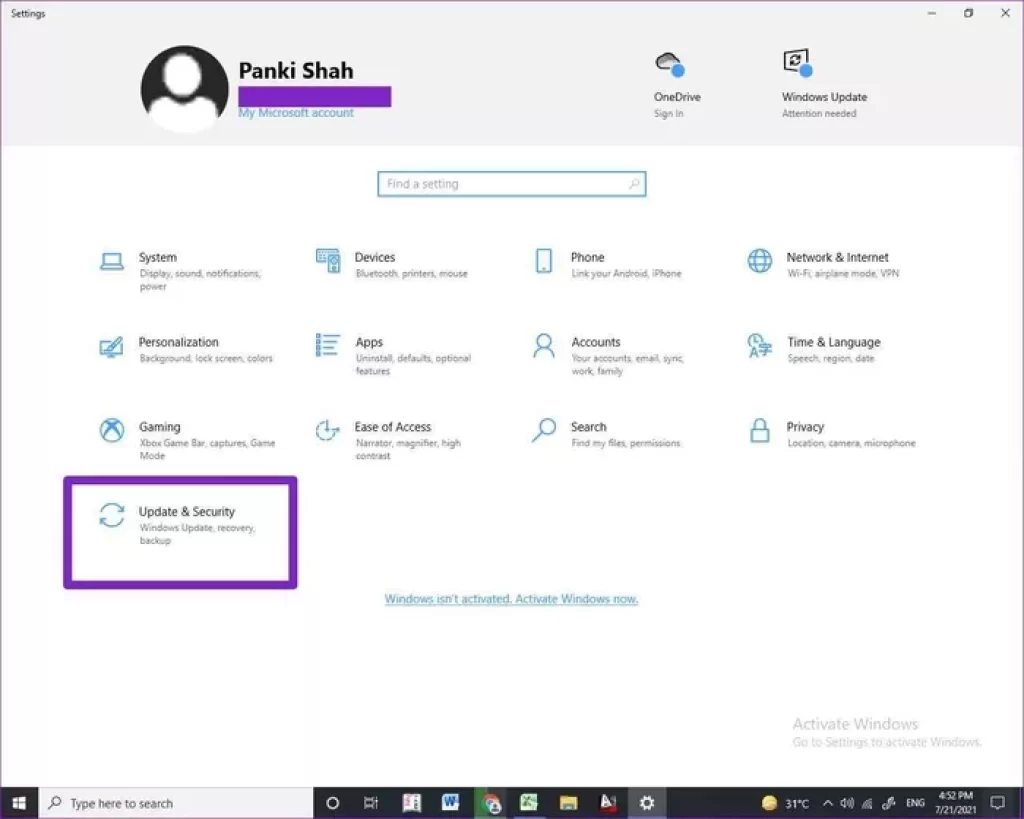
Open Update And Security

Step 2: Navigate to Update & Security > Troubleshoot > Additional troubleshooters > Internet Connections.
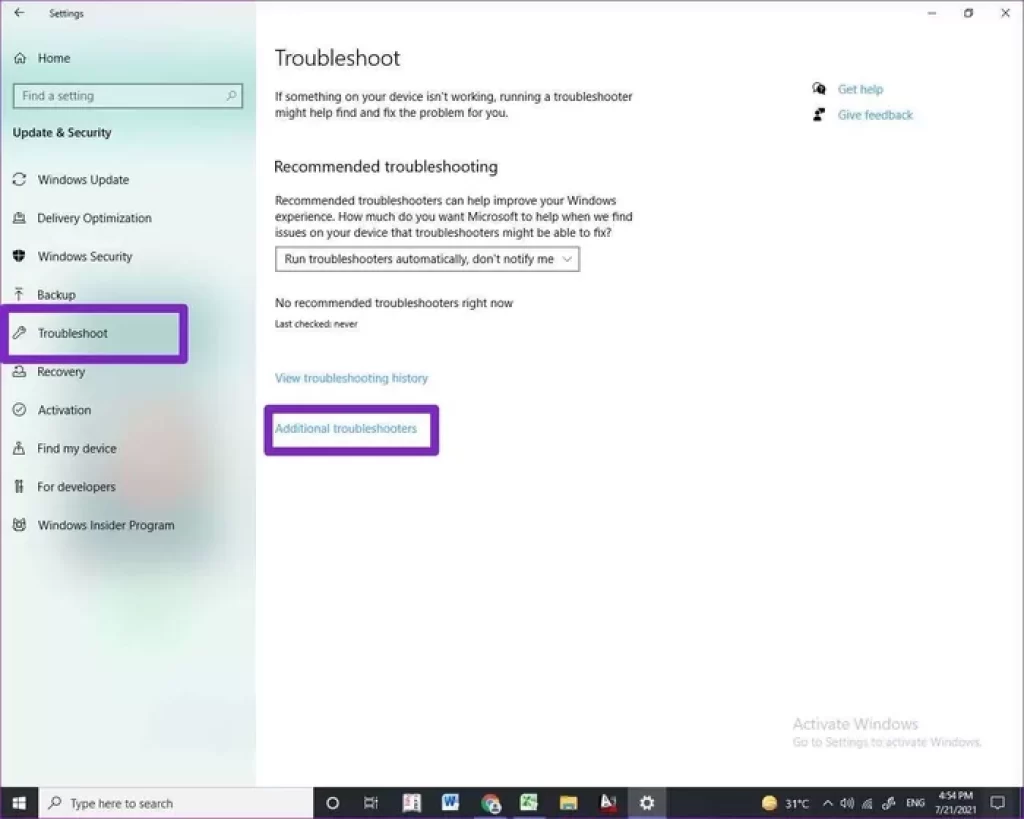
Additonal Troubleshooter

Step 3: Run the troubleshooter and fix internet-related issues on your PC.
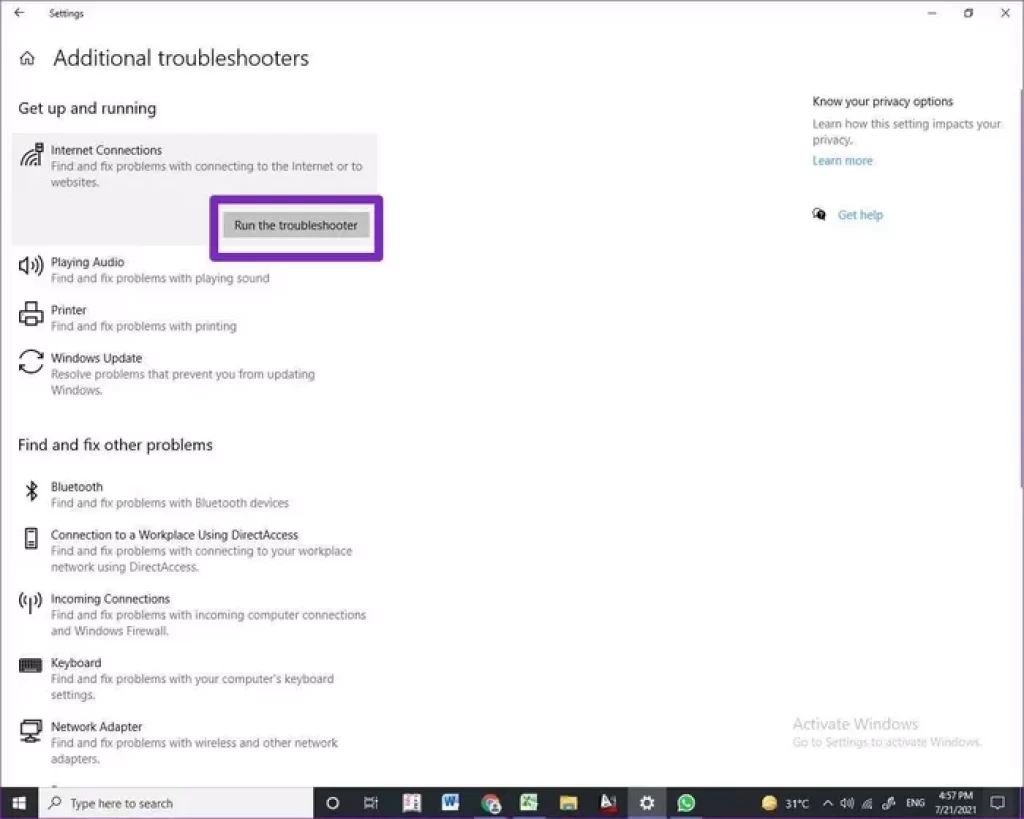
Run Internet Connction Troubleshooter

4. REPAIR WHATSAPP

Microsoft allows you to repair installed apps on the PC from the Advanced options in the Settings menu. Follow the steps below to repair the WhatsApp app.

Step 1: Open the Windows Settings app (Windows + I keys).

Step 2: Navigate to the Apps > Apps & features menu.

Step 3: Scroll down to WhatsApp and select Advanced options.
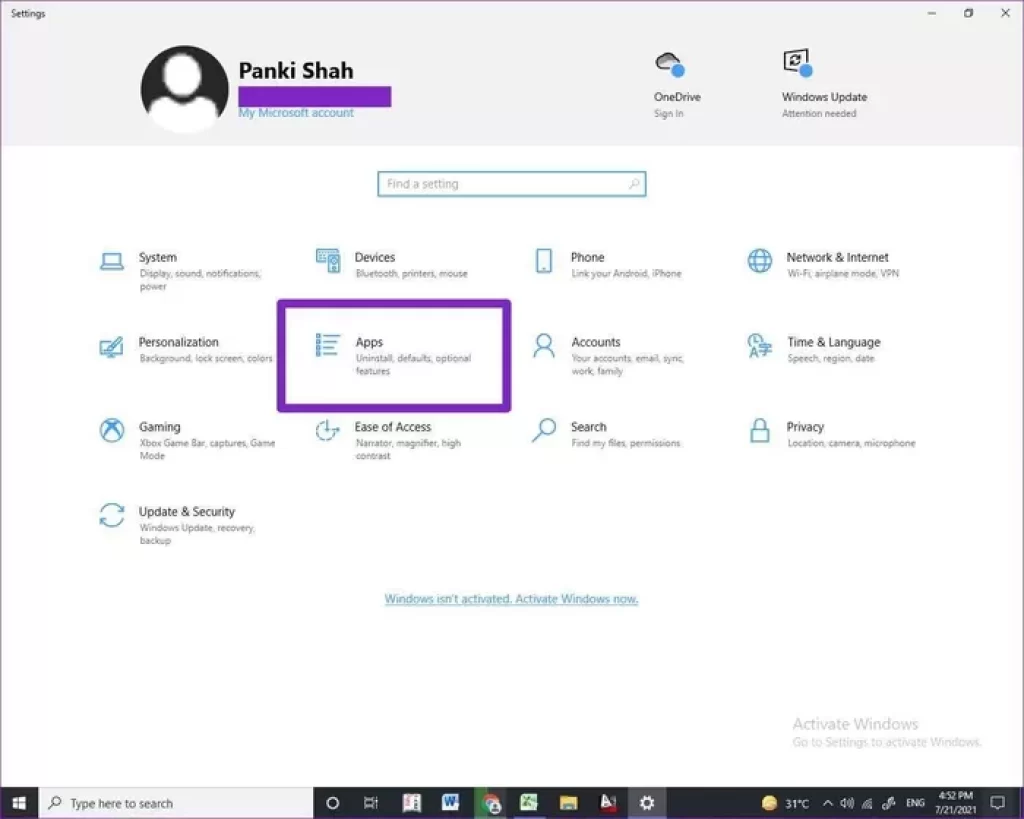
open-the-apps-menu
open-the-apps-menu

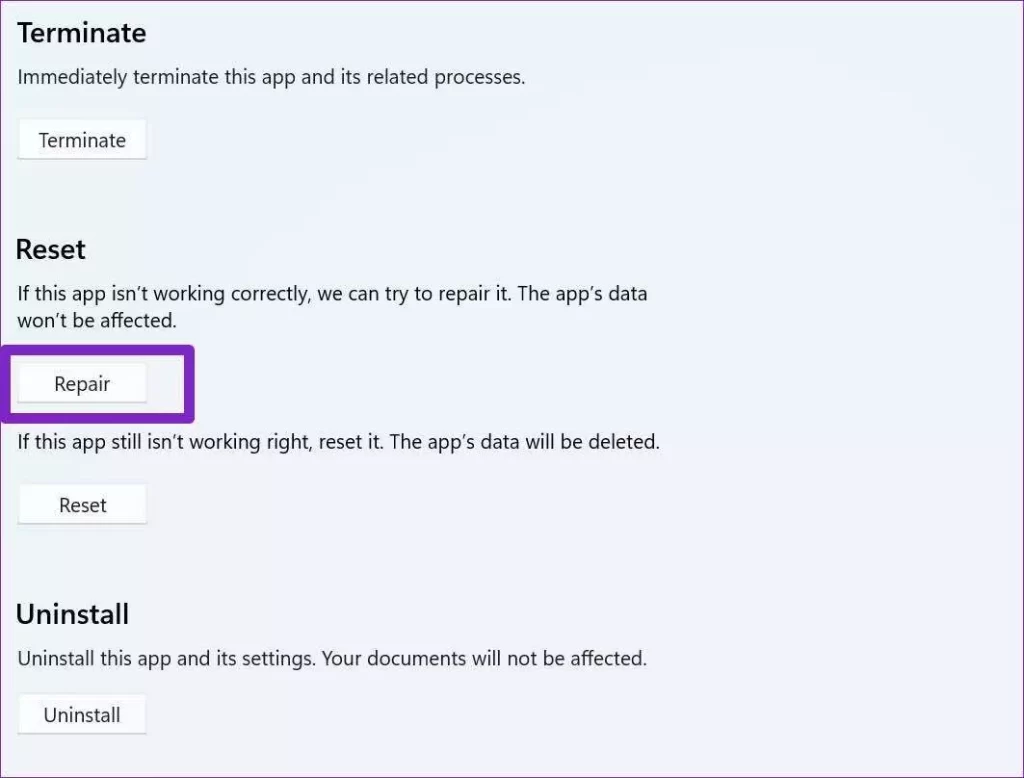
Step 4: Under the Reset menu, select Repair and let Windows handle the troubleshooting.
Repair Whatsapp On Windows

Don’t worry. The app’s data won’t be affected here. Try opening WhatsApp again on your PC.

5. RESET WHATSAPP

If WhatsApp is still not opening on PC, take this extreme step to fix the issue. We had to mention it as extreme as the process will delete all the data from the app. You will have to set up a WhatsApp account from scratch on the PC.

Step 1: Open Windows Settings and go to Apps > Apps & features menu.

Step 2: Open WhatsApp > Advanced options.
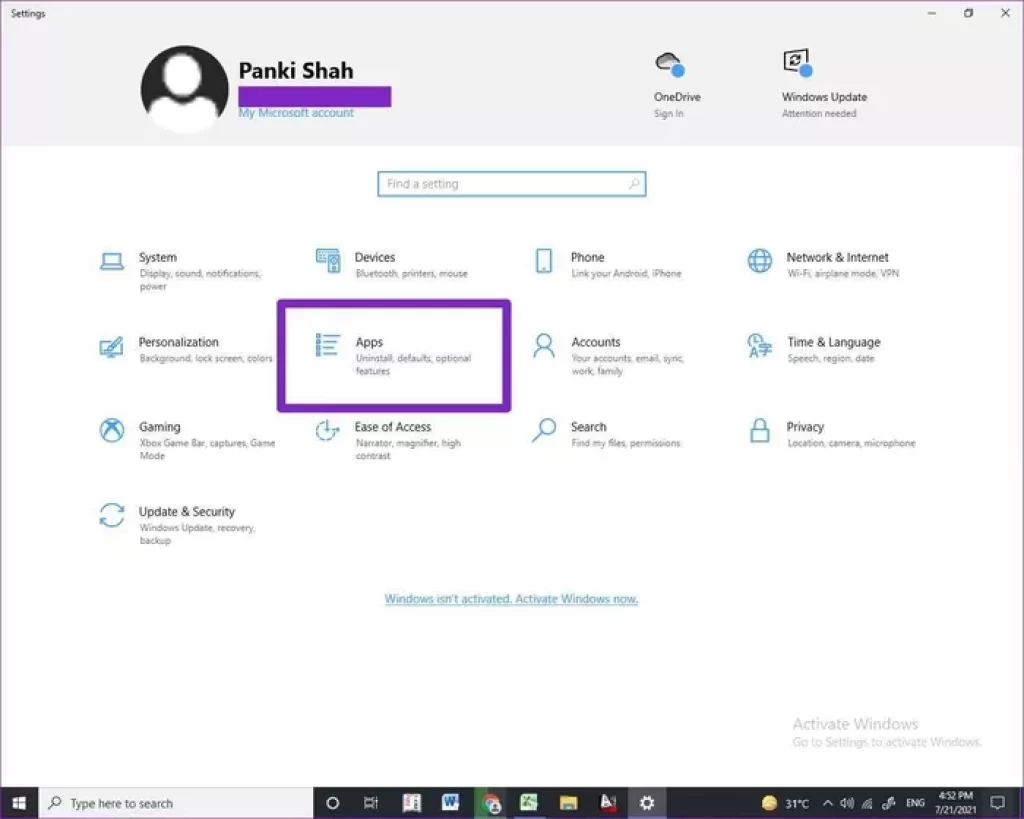
Open The Apps Menu
Open The Apps Menu

Step 3: Select the Reset button under the Reset menu.
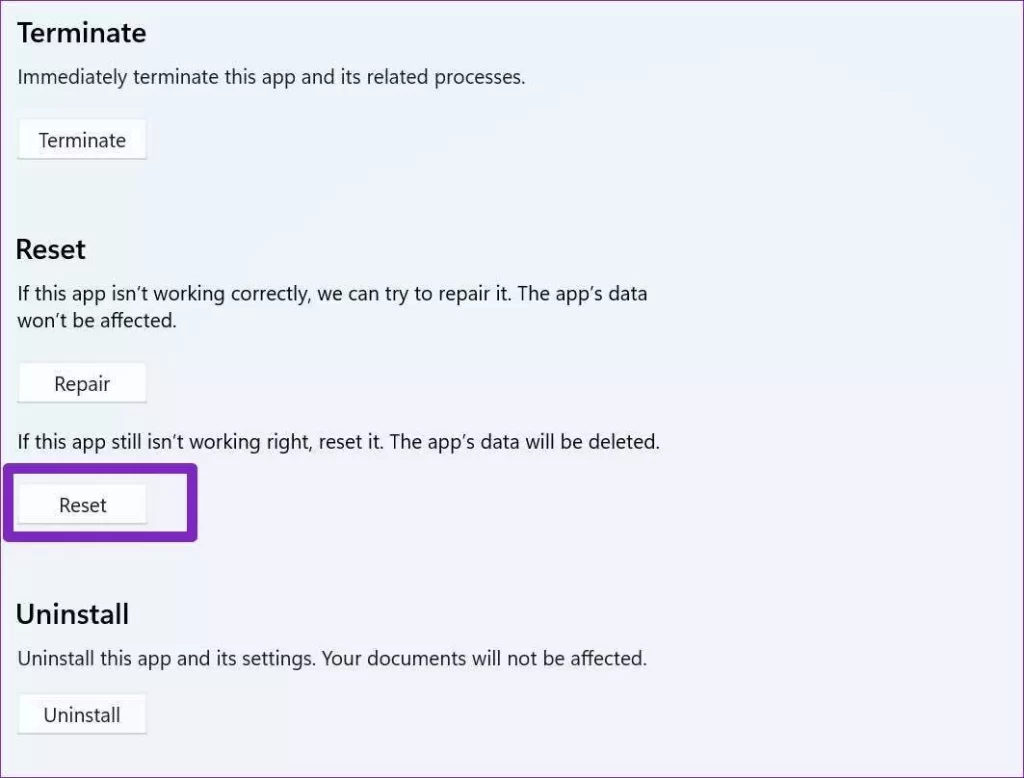
Reset Whatsapp On Windows

This will delete all the app data and you will have a functional app again.

6. REINSTALL WHATSAPP

Since WhatsApp isn’t opening for you, you can’t update the app to the latest version available. Instead, you need to reinstall the app from the WhatsApp official website.

But first, you need to uninstall the app from the Windows Settings menu. Here’s how to do it.

Step 1: Open the Settings app on Windows 10 (Use Windows + I keys).

Step 2: Go to Apps > Apps & features and scroll down to WhatsApp.
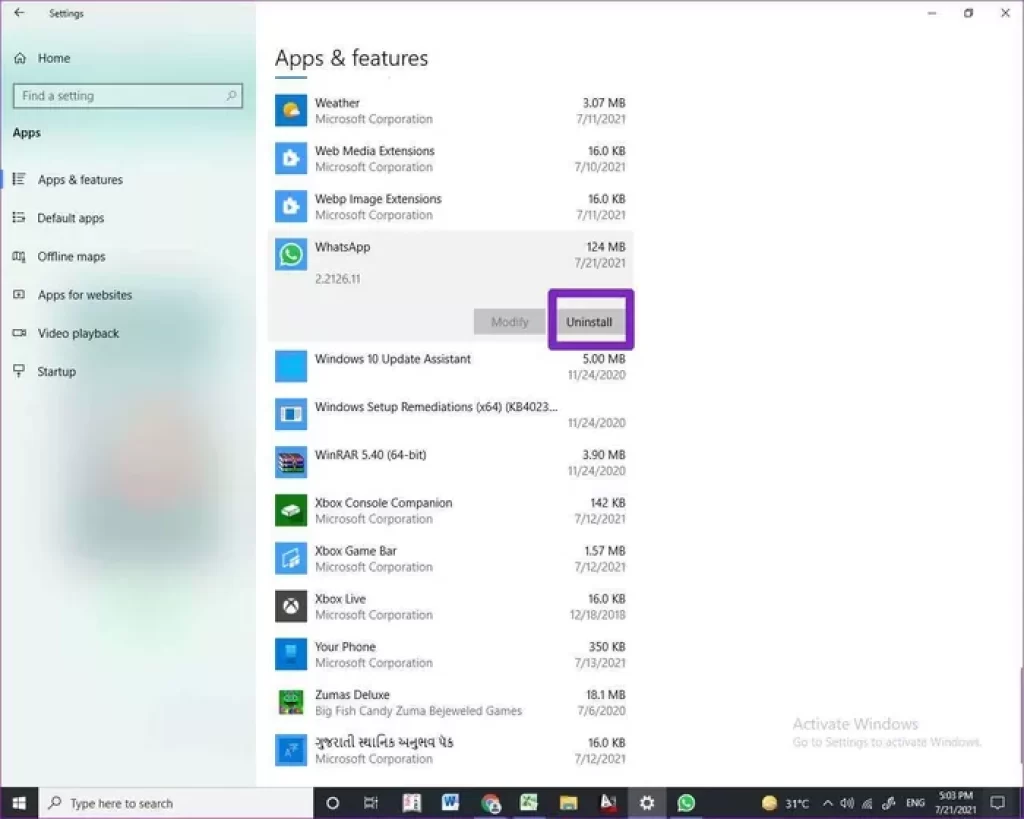
Uninstall Whatsapp On PC

Step 3: Click on WhatsApp and select the Uninstall button to remove the app from the PC.

Go to the WhatsApp official website using the link below. Download and install the latest available build.

7. USE WHATSAPP WEB

If you have frequent issues with the WhatsApp desktop app, you need to consider using the WhatsApp web.

WhatsApp web is equally capable with all the features such as gifs, stickers, starred messages, pinned conversion, native notification via the browser, and more.

In short, you won’t miss the WhatsApp desktop app again on your PC.


Leave a Reply

Your email address will not be published. Required fields are marked *

top
Select the fields to be shown. Others will be hidden. Drag and drop to rearrange the order.
  • Image
  • SKU
  • Rating
  • Price
  • Stock
  • Availability
  • Add to cart
  • Description
  • Content
  • Weight
  • Dimensions
  • Additional information
Click outside to hide the comparison bar
Compare
Compare ×
Let's Compare! Continue shopping

Inactive

Simplifying IT
for a complex world.
Platform partnerships