
WhatFlow helps online merchants automate order confirmations, abandoned cart recovery, fulfillment updates, and cancellations via WhatsApp

category:

Development

services:

WordPress, HTML

Date:

November 22, 2023

team:

Developer – Anna Lee
Designer – Tim Willson

WhatFlow simplifies order management by automating order confirmations, abandoned cart recovery, fulfillment updates, and cancellations directly via WhatsApp. It sends confirmation polls to customers and automatically updates order tags based on their responses, helping merchants efficiently track confirmed and canceled orders. Integrated seamlessly with Shopify, WhatFlow allows merchants to manage orders and customer engagement directly from their dashboard—saving time and reducing manual work.

Automatically send confirmation messages to customers via WhatsApp.
Reach out to customers who abandoned their checkouts with automated reminders.
Keep customers informed with real-time updates on shipping and delivery status.
Manage orders and track customer responses directly from your Shopify dashboard.
No complex API setup, connect in minutes using WhatsApp’s “link a device”.

WhatFlow helps online merchants automate order confirmations, abandoned cart recovery, fulfillment updates, and cancellations via WhatsApp

category:

Development

services:

WordPress, HTML

Date:

November 22, 2023

team:

Developer – Anna Lee
Designer – Tim Willson

WhatFlow simplifies order management by automating order confirmations, abandoned cart recovery, fulfillment updates, and cancellations directly via WhatsApp. It sends confirmation polls to customers and automatically updates order tags based on their responses, helping merchants efficiently track confirmed and canceled orders. Integrated seamlessly with Shopify, WhatFlow allows merchants to manage orders and customer engagement directly from their dashboard—saving time and reducing manual work.

Automatically send confirmation messages to customers via WhatsApp.
Reach out to customers who abandoned their checkouts with automated reminders.
Keep customers informed with real-time updates on shipping and delivery status.
Manage orders and track customer responses directly from your Shopify dashboard.
No complex API setup, connect in minutes using WhatsApp’s “link a device”.

WhatFlow helps online merchants automate order confirmations, abandoned cart recovery, fulfillment updates, and cancellations via WhatsApp

category:

Development

services:

WordPress, HTML

Date:

November 22, 2023

team:

Developer – Anna Lee
Designer – Tim Willson

WhatFlow simplifies order management by automating order confirmations, abandoned cart recovery, fulfillment updates, and cancellations directly via WhatsApp. It sends confirmation polls to customers and automatically updates order tags based on their responses, helping merchants efficiently track confirmed and canceled orders. Integrated seamlessly with Shopify, WhatFlow allows merchants to manage orders and customer engagement directly from their dashboard—saving time and reducing manual work.

Automatically send confirmation messages to customers via WhatsApp.
Reach out to customers who abandoned their checkouts with automated reminders.
Keep customers informed with real-time updates on shipping and delivery status.
Manage orders and track customer responses directly from your Shopify dashboard.
No complex API setup, connect in minutes using WhatsApp’s “link a device”.

Category Windows
How to enable tabs for File Explorer on Windows 11

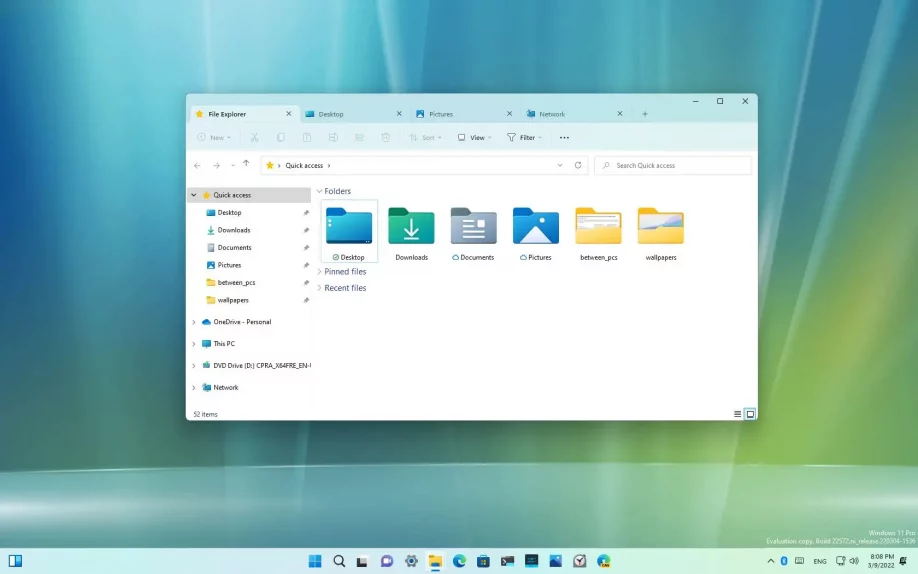
On Windows 11, you can now enable an early preview of tabs in File Explorer on the latest preview available in the Dev Channel of the Windows Insider Program.

The feature was first spotted by Rafael Rivera on Windows 11 build 22572. The feature works just like in Microsoft Edge. You can open multiple tabs for each section of File Explorer or folder. Also, you have an option to create new or close open tabs, and the feature works in the dark mode. If you want to get hands-on with tabs you can use a third-party tool known as “ViVeTool” created by Rafael Rivera and Lucas on GitHub to enable the new experience on your computer.

Since this is an experimental feature that Microsoft hasn’t officially announced it’s unclear whether this will be the new default experience for Windows 11, or it’ll be a feature that you must enable manually.

This guide will teach you the steps to turn on the tabs feature hidden in the latest insider preview of Windows 11 from the Dev channel. (See also this video tutorial on how to complete this task in the Pureinfotech YouTube channel.)

Enable tabs for File Explorer on Windows 11

To enable tabs in File Explorer, use these steps:

    1. Open GitHub website.
    2. Download the ViveTool-vx.x.x.zip file to enable the new Start menu.
    3. Double-click the zip folder to open it with File Explorer.
    4. Click the Extract all button.Extract ViveTool files
  1. Click the Extract button.
  2. Copy the path to the folder.
  3. Open Start menu.
  4. Search for Command Prompt, right-click the top result, and select the Run as administrator option.
  5. Type the following command to navigate to the ViveTool folder and press Enter:
    cd C:\FOLDER\PATH\ViveTool-v0.2.1

    In the command, remember to change the path to the folder with your path.

  6. Type the following command to enable File Explorer tabs on Windows 11 and press Enter:
    vivetool addconfig 34370472 2

    Windows 11 File Explorer enable tabs

  7. Restart the computer.

Once you complete the steps, File Explorer will now appear with the ability to create and use tabs.

In the case you don’t have the Windows 11 build 22572, you need to enroll in the Dev Channel using the “Windows Insider Program” settings from the “Windows Update” section. Once you enroll the device in the program, you can download build 22572 from the “Windows Update” settings by clicking the Check for Updates button, and then you can follow the steps outlined above.

If you change your mind, you can revert the changes with the same instructions, but on step No. 10, make sure to use these commands: vivetool delconfig 34370472 2 and then restart the device.

Leave a Reply

Your email address will not be published. Required fields are marked *

top
Select the fields to be shown. Others will be hidden. Drag and drop to rearrange the order.
  • Image
  • SKU
  • Rating
  • Price
  • Stock
  • Availability
  • Add to cart
  • Description
  • Content
  • Weight
  • Dimensions
  • Additional information
Click outside to hide the comparison bar
Compare
Compare ×
Let's Compare! Continue shopping

Inactive

Simplifying IT
for a complex world.
Platform partnerships