

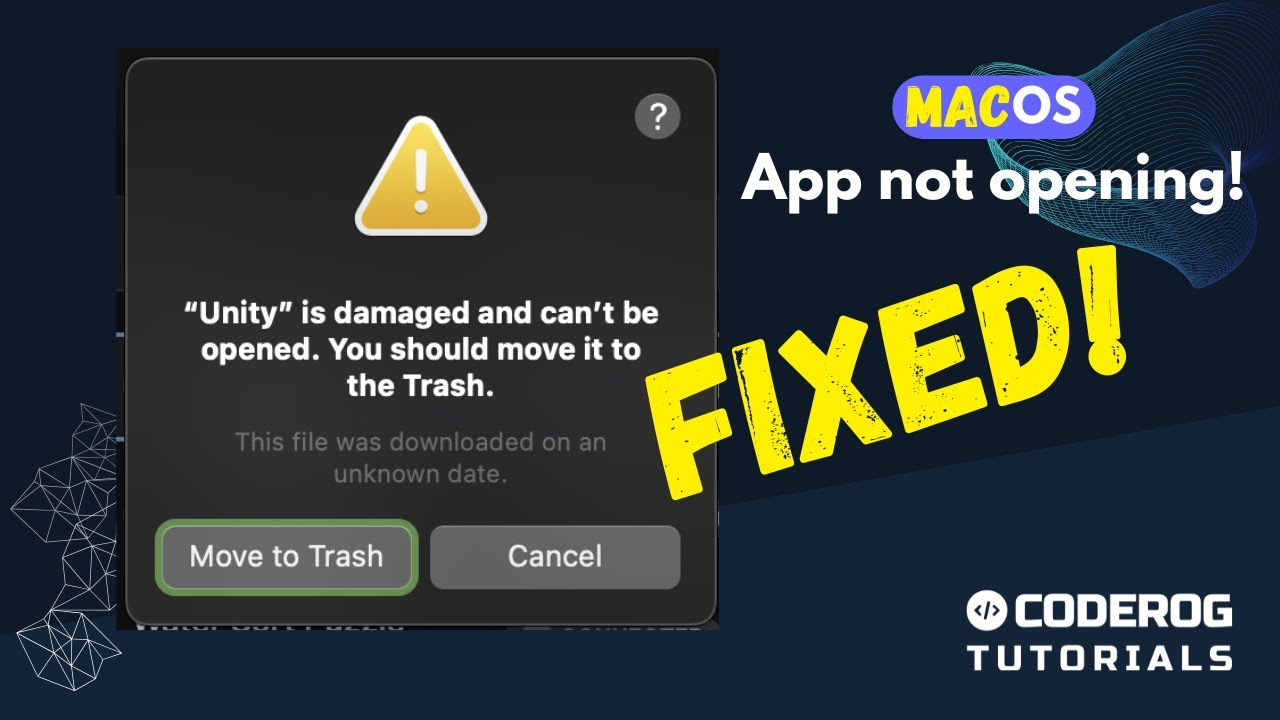
If you’re a Mac user, you may have encountered the frustrating error message:
“App is damaged and can’t be opened. You should move it to the Trash.”
This typically happens when macOS flags an application as untrusted or damaged due to its security policies. Fortunately, the fix is pretty straightforward.
Why Does This Error Appear?
macOS includes security features like Gatekeeper that prevent potentially harmful software from running. Sometimes, even legitimate apps get mistakenly quarantined when downloaded from the internet or transferred from other devices. This triggers the “damaged” error, blocking the app from opening properly.
How to Fix the Error Using Terminal
One of the most effective solutions is to remove the quarantine attribute attached to the app. Here is the step-by-step method:
- Open Terminal
Go to Applications > Utilities > Terminal to launch Terminal. - Run the Quarantine Removal Command
Type the following command but don’t press Enter yet:
sudo xattr -d com.apple.quarantine
Run the Quarantine Removal Command - Drag and Drop the App into Terminal
After the space at the end of the command, drag the problematic application’s icon into the Terminal window. This will automatically add the full path of the app. - Execute the Command
Press Enter. You will be asked to enter your Mac password. This is the admin password you use to log in to your Mac. Note that Terminal won’t show the characters as you type the password—just type it and hit Enter again. - Try Opening the App Again
After this, try opening your app as usual. The “damaged” error should no longer appear.
Additional Tips
Only perform this if you trust the source of the app.
If this doesn’t work, try restarting your Mac or reinstalling the app.
Disabling Gatekeeper is another option but is not recommended for security reasons unless you know exactly what you are doing.
About CodeROG Software
At CodeROG, we aim to provide simple and clear tech tutorials to help you make the most of your devices. For more helpful tips like this, subscribe to our channel and visit coderog.com.