
WhatFlow helps online merchants automate order confirmations, abandoned cart recovery, fulfillment updates, and cancellations via WhatsApp

category:

Development

services:

WordPress, HTML

Date:

November 22, 2023

team:

Developer – Anna Lee
Designer – Tim Willson

WhatFlow simplifies order management by automating order confirmations, abandoned cart recovery, fulfillment updates, and cancellations directly via WhatsApp. It sends confirmation polls to customers and automatically updates order tags based on their responses, helping merchants efficiently track confirmed and canceled orders. Integrated seamlessly with Shopify, WhatFlow allows merchants to manage orders and customer engagement directly from their dashboard—saving time and reducing manual work.

Automatically send confirmation messages to customers via WhatsApp.
Reach out to customers who abandoned their checkouts with automated reminders.
Keep customers informed with real-time updates on shipping and delivery status.
Manage orders and track customer responses directly from your Shopify dashboard.
No complex API setup, connect in minutes using WhatsApp’s “link a device”.

WhatFlow helps online merchants automate order confirmations, abandoned cart recovery, fulfillment updates, and cancellations via WhatsApp

category:

Development

services:

WordPress, HTML

Date:

November 22, 2023

team:

Developer – Anna Lee
Designer – Tim Willson

WhatFlow simplifies order management by automating order confirmations, abandoned cart recovery, fulfillment updates, and cancellations directly via WhatsApp. It sends confirmation polls to customers and automatically updates order tags based on their responses, helping merchants efficiently track confirmed and canceled orders. Integrated seamlessly with Shopify, WhatFlow allows merchants to manage orders and customer engagement directly from their dashboard—saving time and reducing manual work.

Automatically send confirmation messages to customers via WhatsApp.
Reach out to customers who abandoned their checkouts with automated reminders.
Keep customers informed with real-time updates on shipping and delivery status.
Manage orders and track customer responses directly from your Shopify dashboard.
No complex API setup, connect in minutes using WhatsApp’s “link a device”.

WhatFlow helps online merchants automate order confirmations, abandoned cart recovery, fulfillment updates, and cancellations via WhatsApp

category:

Development

services:

WordPress, HTML

Date:

November 22, 2023

team:

Developer – Anna Lee
Designer – Tim Willson

WhatFlow simplifies order management by automating order confirmations, abandoned cart recovery, fulfillment updates, and cancellations directly via WhatsApp. It sends confirmation polls to customers and automatically updates order tags based on their responses, helping merchants efficiently track confirmed and canceled orders. Integrated seamlessly with Shopify, WhatFlow allows merchants to manage orders and customer engagement directly from their dashboard—saving time and reducing manual work.

Automatically send confirmation messages to customers via WhatsApp.
Reach out to customers who abandoned their checkouts with automated reminders.
Keep customers informed with real-time updates on shipping and delivery status.
Manage orders and track customer responses directly from your Shopify dashboard.
No complex API setup, connect in minutes using WhatsApp’s “link a device”.

Category Windows
Show or Hide Navigation Pane in File Explorer in Windows 11

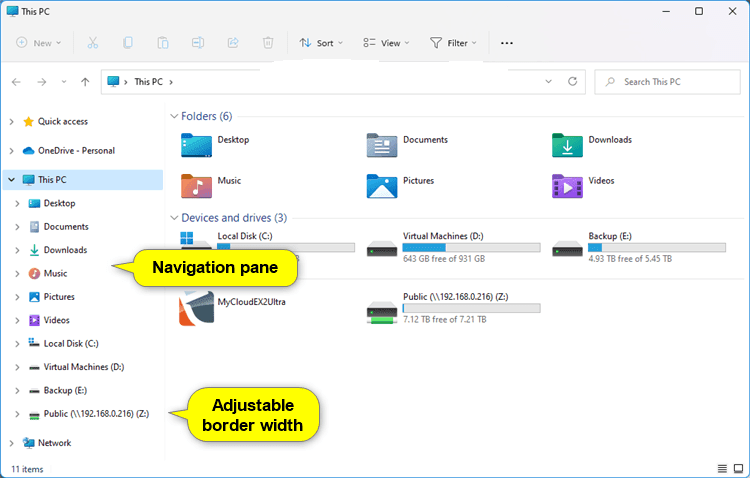
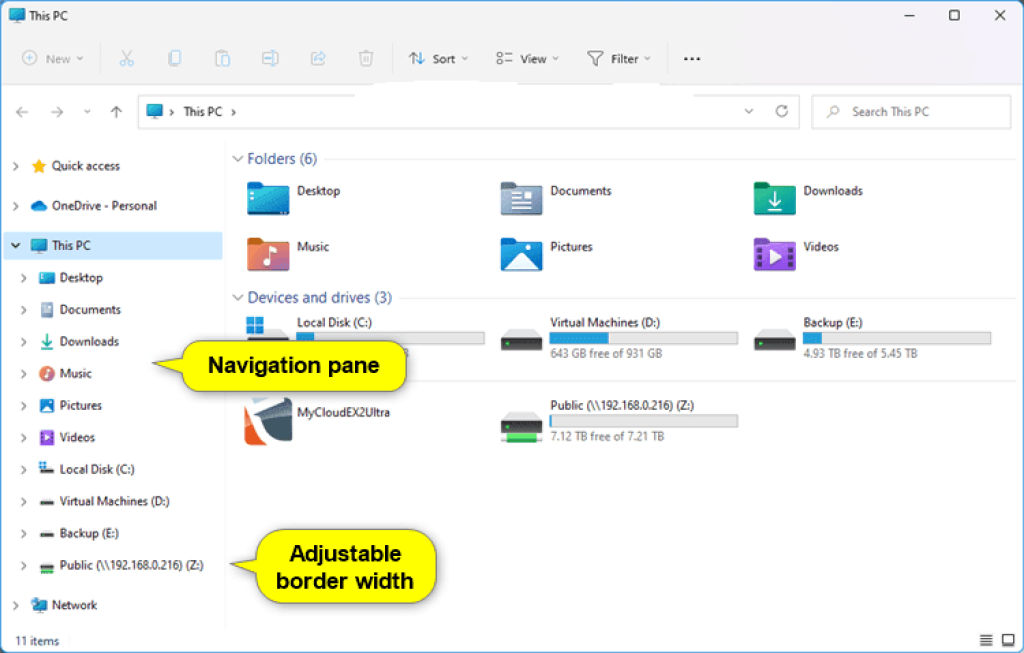
The navigation pane is the far left pane in File Explorer used to find files, folders, and drives on your PC or network.
This tutorial will show you how to show or hide the navigation pane in File Explorer for your account in Windows 11.

Setting the navigation pane to show or hide in File Explorer is a global setting that is applied to all folders, and not just in the current folder. You can drag the right border of the navigation pane left and right to increase or decrease its width in File Explorer.

EXAMPLE: Navigation pane in File Explorer
Show or Hide Navigation Pane in File Explorer in Windows 11

Option One: Show or Hide Navigation Pane in File Explorer from File Explorer Command Bar

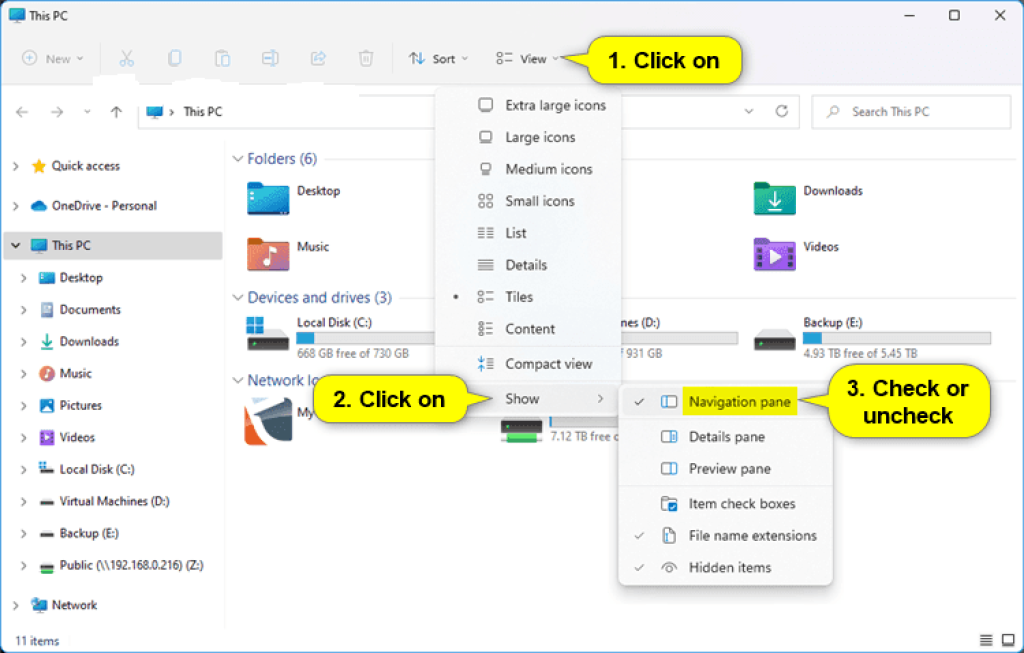
  1. Open File Explorer (Win+E).
  2. Click/tap on View on the command bar. (see screenshot below).
  3. Click/tap on Show.
  4. Check (show – default) or uncheck (hide) Navigation pane for what you want.
Navigation Pane Settings

Option Two: Show or Hide Navigation Pane in File Explorer using REG file

  1. Do step 2 (show) or step 3 (hide) below for what you would like to do.
  2. To Show Navigation Pane in File Explorer

This is the default setting.

A) Click/tap on the Download button below to download the file below, and go to step 4 below.

Show_Navigation_pane_in_File_Explorer_for_current_user.reg

 Download

(Contents of REG file for reference)

Code:

Windows Registry Editor Version 5.00

[HKEY_CURRENT_USER\SOFTWARE\Microsoft\Windows\CurrentVersion\Explorer\Modules\GlobalSettings\Sizer]
"PageSpaceControlSizer"=hex:a0,00,00,00,01,00,00,00,00,00,00,00,ec,03,00,00
  1. Save the .reg file to your desktop.
  2. Double click/tap on the downloaded .reg file to merge it.
  3. When prompted, click/tap on RunYes (UAC), Yes, and OK to approve the merge.
  4. If File Explorer is currently open, then close and reopen File Explorer to apply.
  5. You can now delete the downloaded .reg file if you like.

That’s it.

Leave a Reply

Your email address will not be published. Required fields are marked *

top
Select the fields to be shown. Others will be hidden. Drag and drop to rearrange the order.
  • Image
  • SKU
  • Rating
  • Price
  • Stock
  • Availability
  • Add to cart
  • Description
  • Content
  • Weight
  • Dimensions
  • Additional information
Click outside to hide the comparison bar
Compare
Compare ×
Let's Compare! Continue shopping

Inactive

Simplifying IT
for a complex world.
Platform partnerships