
WhatFlow helps online merchants automate order confirmations, abandoned cart recovery, fulfillment updates, and cancellations via WhatsApp

category:

Development

services:

WordPress, HTML

Date:

November 22, 2023

team:

Developer – Anna Lee
Designer – Tim Willson

WhatFlow simplifies order management by automating order confirmations, abandoned cart recovery, fulfillment updates, and cancellations directly via WhatsApp. It sends confirmation polls to customers and automatically updates order tags based on their responses, helping merchants efficiently track confirmed and canceled orders. Integrated seamlessly with Shopify, WhatFlow allows merchants to manage orders and customer engagement directly from their dashboard—saving time and reducing manual work.

Automatically send confirmation messages to customers via WhatsApp.
Reach out to customers who abandoned their checkouts with automated reminders.
Keep customers informed with real-time updates on shipping and delivery status.
Manage orders and track customer responses directly from your Shopify dashboard.
No complex API setup, connect in minutes using WhatsApp’s “link a device”.

WhatFlow helps online merchants automate order confirmations, abandoned cart recovery, fulfillment updates, and cancellations via WhatsApp

category:

Development

services:

WordPress, HTML

Date:

November 22, 2023

team:

Developer – Anna Lee
Designer – Tim Willson

WhatFlow simplifies order management by automating order confirmations, abandoned cart recovery, fulfillment updates, and cancellations directly via WhatsApp. It sends confirmation polls to customers and automatically updates order tags based on their responses, helping merchants efficiently track confirmed and canceled orders. Integrated seamlessly with Shopify, WhatFlow allows merchants to manage orders and customer engagement directly from their dashboard—saving time and reducing manual work.

Automatically send confirmation messages to customers via WhatsApp.
Reach out to customers who abandoned their checkouts with automated reminders.
Keep customers informed with real-time updates on shipping and delivery status.
Manage orders and track customer responses directly from your Shopify dashboard.
No complex API setup, connect in minutes using WhatsApp’s “link a device”.

WhatFlow helps online merchants automate order confirmations, abandoned cart recovery, fulfillment updates, and cancellations via WhatsApp

category:

Development

services:

WordPress, HTML

Date:

November 22, 2023

team:

Developer – Anna Lee
Designer – Tim Willson

WhatFlow simplifies order management by automating order confirmations, abandoned cart recovery, fulfillment updates, and cancellations directly via WhatsApp. It sends confirmation polls to customers and automatically updates order tags based on their responses, helping merchants efficiently track confirmed and canceled orders. Integrated seamlessly with Shopify, WhatFlow allows merchants to manage orders and customer engagement directly from their dashboard—saving time and reducing manual work.

Automatically send confirmation messages to customers via WhatsApp.
Reach out to customers who abandoned their checkouts with automated reminders.
Keep customers informed with real-time updates on shipping and delivery status.
Manage orders and track customer responses directly from your Shopify dashboard.
No complex API setup, connect in minutes using WhatsApp’s “link a device”.

Category Tutorials, Windows
If you recently installed a new version of Windows next to a previous one, your computer will now show a dual-boot menu in the Windows Boot Manager screen from where you can choose which Windows versions to boot into: the new version or the earlier version.

In this article, learn how to remove the dual-boot menu for the following Windows versions: XP, Vista, 7, 8, 8.1 and 10.
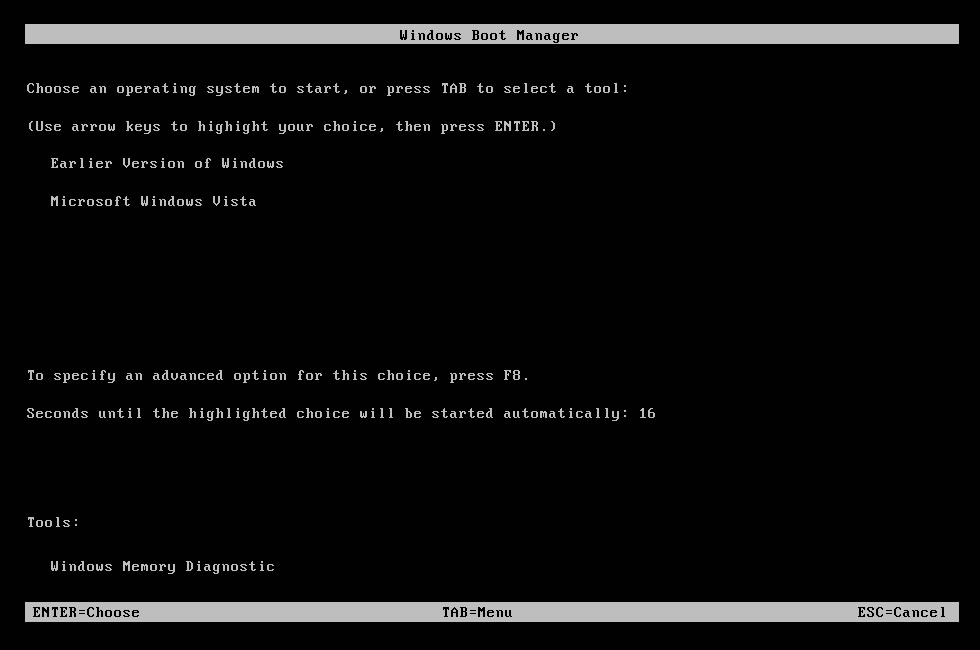
Example of Dual Boot Menu

Fix #1: Open msconfig

Using the msconfig utility tool allows you to select which version of Windows you’d like to boot directly into when you restart your computer.

Follow these steps:

  1. Click Start
  2. Type msconfig in the search box or open Run
  3. Go to Boot
  4. Select which Windows version you’d like to boot into directly
  5. Press Set as Default
  6. You can delete the earlier version by selecting it and then clicking Delete
  7. Click Apply
  8. Click OK
  9. Restart your computer

If you choose to delete a version from the Boot tab of msconfig, that Windows version won’t be deleted, but it won’t be displayed on the Windows Boot Manager screen.

Fix #2: Use EasyBCD

Using EasyBCD, you can easily remove this bug. Just follow these steps.

  1. Click the EasyBCD icon on the desktop.
  2. Go to the “Edit Boot Menu” tab. (With the wrench and screwdriver)
  3. Click on the previous version (See below)
  4. Click “Delete” (With the X in a octagon)

More Information


New vs. Old:

  • For Windows 10:
    • Windows 9*
    • Windows 8
    • Windows 7
    • Windows Vista
    • Windows XP
  • For Windows 9*:
    • Windows 8
    • Windows 7
    • Windows Vista
    • Windows XP
  • For Windows 8:
    • Windows 7
    • Windows Vista
    • Windows XP
  • For Windows 7:
    • Windows Vista
    • Windows XP
  • For Windows Vista:
    • Windows XP
  • For Windows XP:
    • Anything else

A * indicates a development/testing OS.

Support Links

Applicable Systems

This Windows-related knowledgebase article applies to the following operating systems:

  • Windows XP (all editions)
  • Windows Vista (all editions)
  • Windows 7 (all editions)
  • Windows 8 (all editions)
  • Windows 8.1 (all editions)
  • Windows 10 (all editions)

Leave a Reply

Your email address will not be published. Required fields are marked *

top
Select the fields to be shown. Others will be hidden. Drag and drop to rearrange the order.
  • Image
  • SKU
  • Rating
  • Price
  • Stock
  • Availability
  • Add to cart
  • Description
  • Content
  • Weight
  • Dimensions
  • Additional information
Click outside to hide the comparison bar
Compare
Compare ×
Let's Compare! Continue shopping

Inactive

Simplifying IT
for a complex world.
Platform partnerships